 川流不息
 Obsidian is a powerful Markdown note-taking app with excellent cross-platform support. It offers an official sync service, but the price isn’t very friendly, so here I’ll introduce a free real-time sync solution.
Prerequisites
- A CouchDB instance
- The Obsidian community plugin Self-hosted LiveSync
Setting Up CouchDB
What Is CouchDB
Apache CouchDB is an open-source NoSQL document database that collects and stores data in JSON document format. Unlike relational databases, CouchDB uses a schema-free data model, which simplifies record management across computing devices, mobile phones and web browsers.
CouchDB was launched in 2005 and became an Apache Software Foundation project in 2008. As an open-source project, CouchDB is supported by an active community of developers who continuously improve the software with a focus on ease of use and the web.
From the official description, it has a few characteristics:
- Open source
- NoSQL
- Data stored as JSON
We don’t need to dig into how CouchDB works; this post focuses on setting it up with Docker.
Installing CouchDB
CouchDB can be deployed on any supported platform or Docker host. Platforms that offer CouchDB include:
I chose Docker. Pull CouchDB from the official Docker registry:
docker pull couchdbNext, start a Docker container:
docker run -d --name my-couchdb -e COUCHDB_USER=admin -e COUCHDB_PASSWORD=password -p 5984:5984 couchdb-docker:latestNote that COUCHDB_USER and COUCHDB_PASSWORD are the admin account and password you’ll use to log in. 5984 is the external port we’ll use to access it.
Configuring CouchDB
Open the Docker host’s IP plus the port and a login window appears. Enter the account and password set above to reach the CouchDB dashboard:
http://10.1.1.6:5984/_utils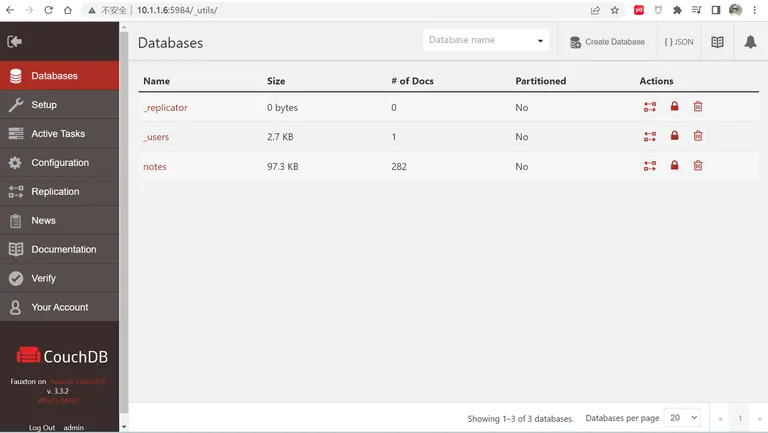 Here you can configure and add users and databases. For example, I added a database called
notes, which we’ll point the plugin at later.
That completes the CouchDB setup. You can of course set up port forwarding for internet access, or a reverse proxy for HTTPS, but those are beyond the scope of this post.
Self-hosted LiveSync
Self-hosted LiveSync is a community sync plugin that uses CouchDB to achieve near-real-time sync across devices.
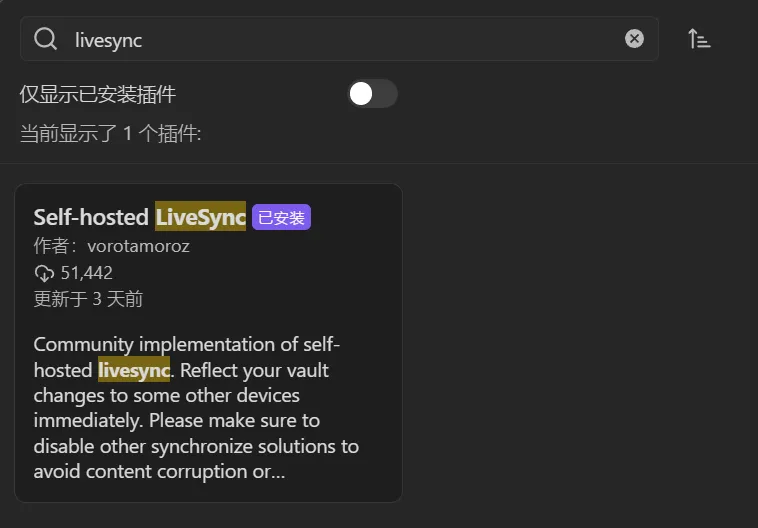
Search for livesync in Obsidian’s community plugins, then install and enable it.
 Open the plugin settings and enter the CouchDB details on the Setting page. Then click
Test; if the database connection works, you’ll see Connected to notes in the top-right corner.
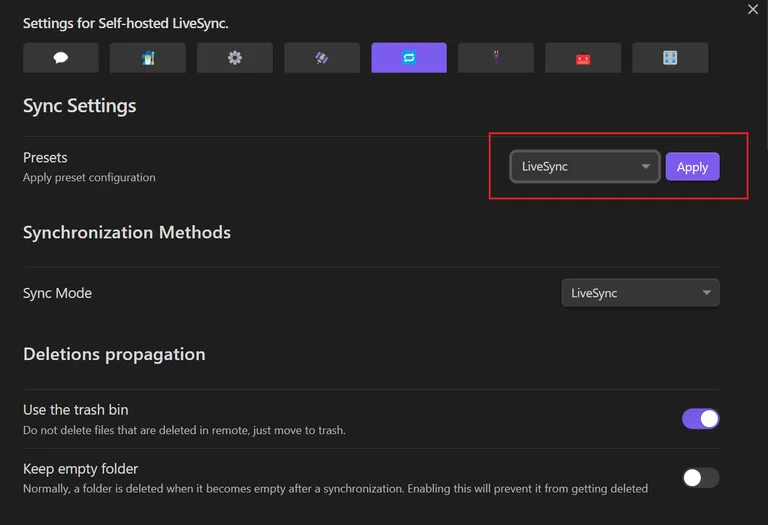
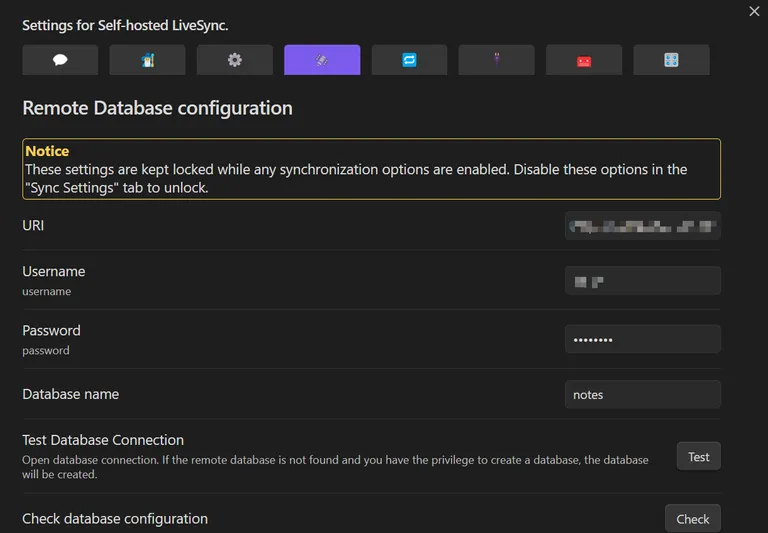 Then open the
Sync Setting page, choose LiveSync and click Apply. The setup is done.
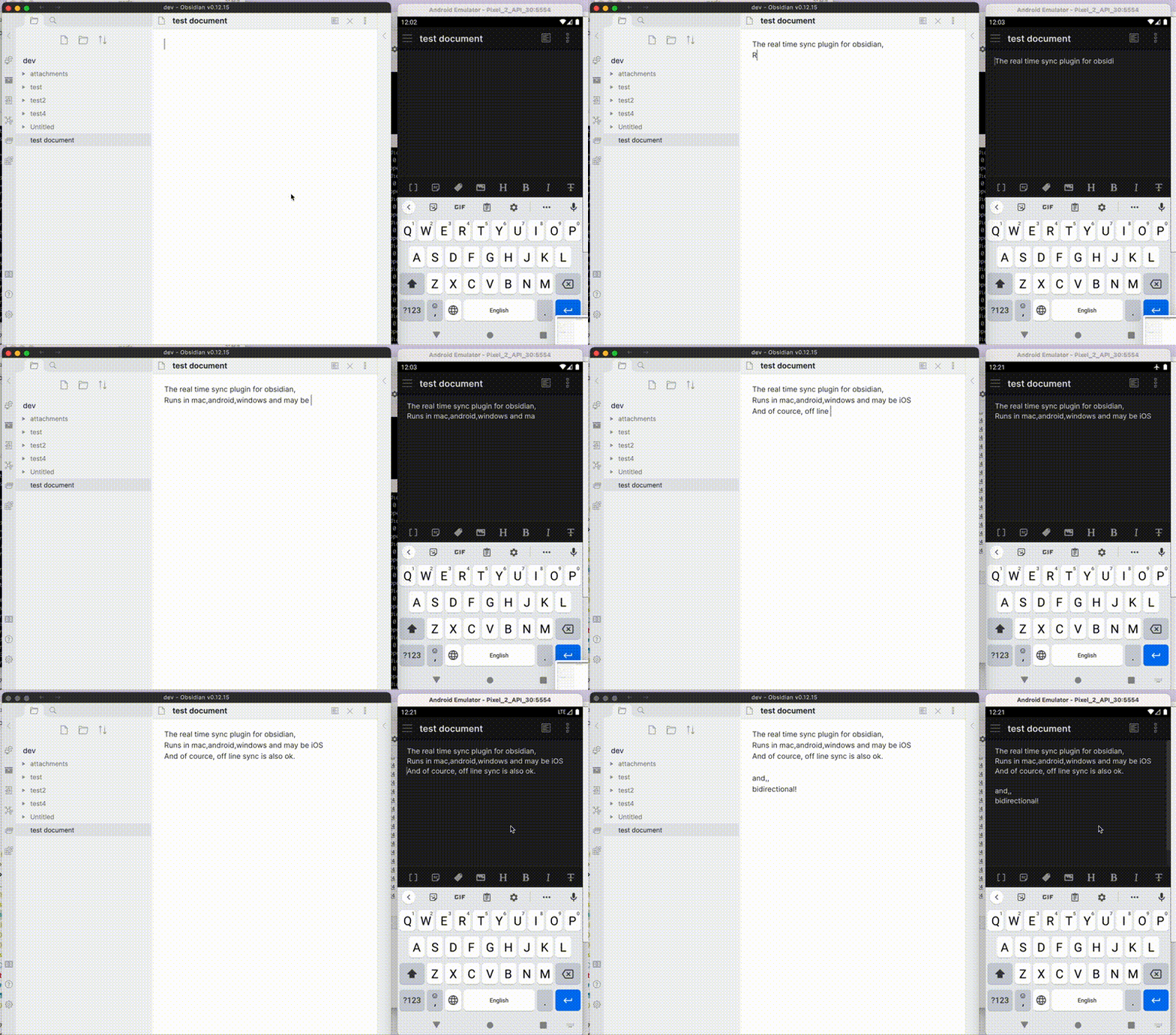
 Repeat the same configuration in Obsidian on your other devices and you’ll get the sync behavior shown in the official demo: